Messages to employees at DTU
For users of share.dtu.dk: Known issues after upgrade
After the upgrade of share.dtu.dk, there are unfortunately some known issues that we are currently working to resolve.
The issues concern:
- Creating a new site
- Inviting users to a site
- OOS (Office Online Server), which means files cannot be opened and edited directly in the browser. Until this issue has been resolved, users must open files from share.dtu.dk in the relevant desktop application, such as Word, Excel, or PowerPoint.
Workaround for editing a file:
Important: If you simply click on the file to open it, the file will be downloaded to your computer. Any changes you make and save will then be saved locally on your PC rather than back to SharePoint.
You need the relevant desktop application installed on your computer, such as Word, Excel, PowerPoint, or another application that supports the file type.
Be aware that the normal browser-based co-authoring experience is not available in this situation, so you will not be able to see other users’ edits appear live while you are working.
If another author has made changes to the file, Office may notify you that a newer version or conflicting changes exist. Follow the message shown in the Office application, refresh or resolve the conflict if prompted, and make sure your own changes are saved before closing the file. This ensures that the file can still be edited and saved back to the SharePoint document library.
Step-by-step procedure
Open the file menu by selecting the three dots, then choose the relevant desktop application option, such as Open in Word or Open in PowerPoint.
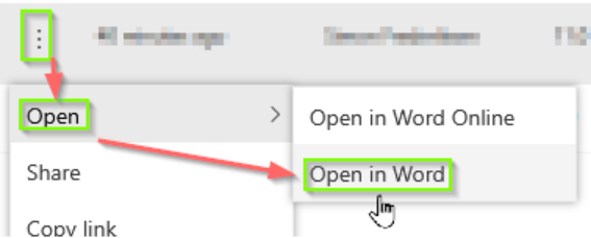
If your browser asks for permission, allow the file to open in the desktop application.
Edit the file in the desktop application.
Save your changes and wait until the application has finished saving before closing the file.
Excel files
For Excel files, we recommend checking out the file before editing it.
Questions and support
If you have any questions or need support, please contact AIT SharePoint team via DTU Service Portal.
Best regards, SharePoint team
List settings
Go to messages.dtu.dk
Jesper Møller-Fink
Last updated by:
Jesper Møller-Fink
Does not push to email