Need help with receiving goods in DTU Fusion?
If you have any questions about receiving goods in DTU Fusion, please contact your local superuser.
Superusers can assist with receiving goods, notifications, and using DTU Fusion.
Have you ordered goods or services for DTU? If so, be sure to make goods receipt in DTU Fusion once the goods or services have been received.
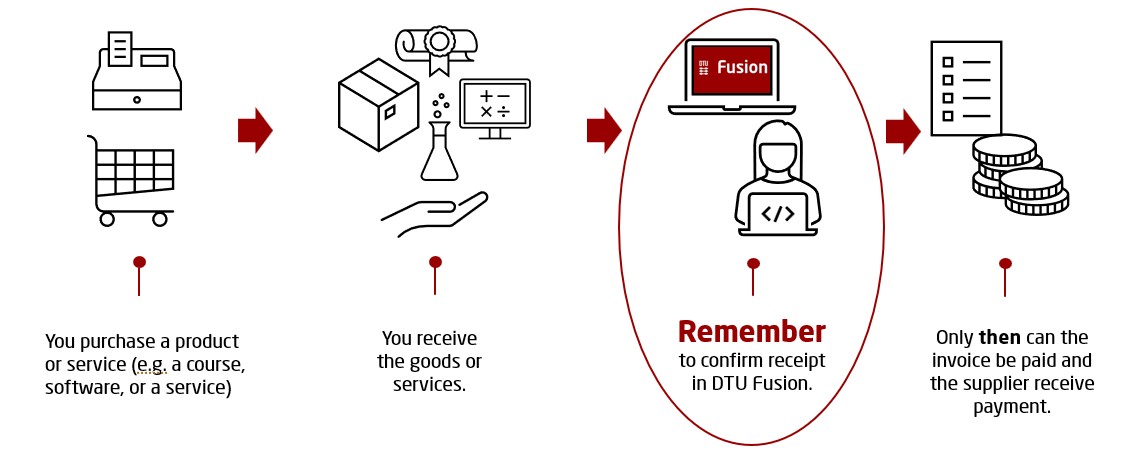
It is not enough that the goods have been physically received or that the service has been provided in practice. The receipt must also be registered in DTU Fusion before the invoice can be paid.
In DTU Fusion, this is referred to as receiving goods and services.
As long as the receipt has not been registered in DTU Fusion, you will receive email notifications from DTU Fusion. The notifications look different depending on whether you have ordered physical goods (purchases) or services (amount orders).
Below, you can see what the notifications for goods purchases and funding orders look like, and what you need to be aware of.
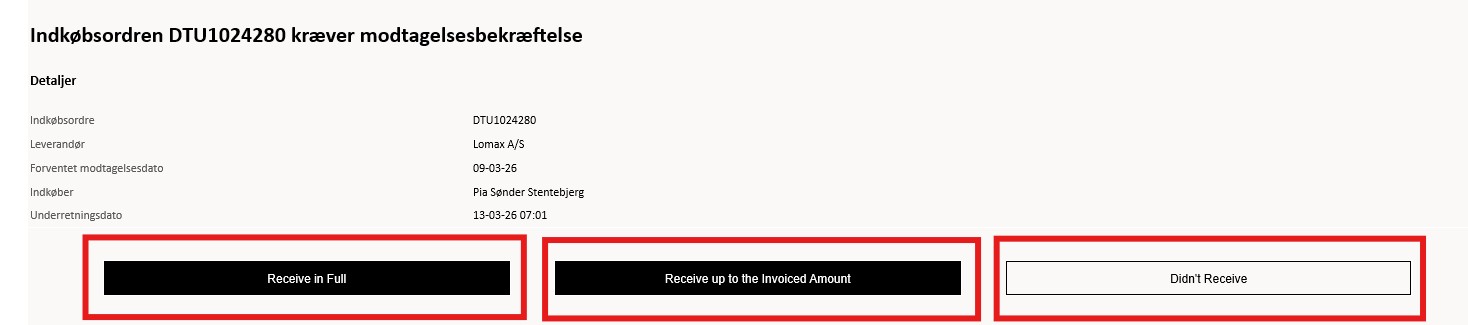
Once you have ordered a physical item, you will receive an email notification from DTU Fusion with the following subject line:
Action Required: Purchase Order DTUXXXXXXX
requires confirmation of receipt
You can register goods receipt directly from the notification.
Amount orders are used when purchasing courses, services, and consulting services, where the receipt is recorded as an amount rather than a quantity.
You will receive an email notification from DTU Fusion, which typically has the following subject line:
FYI: Maximum received amount tilbageholdelse på faktura XXXXX til leverandøren XXXXX
Even though it says FYI, the notification still requires action.
This means that the invoice has been received, but the amount has not yet been recorded as approved for payment in DTU Fusion..
Once the amount has been recorded as received in DTU Fusion, the invoice can be processed for payment.
If you receive other types of notifications from DTU Fusion, the purchase order typically requires a different type of action before you can confirm receipt.
This could include, for example:
See an overview of other types of notifications and invoice hold in the video guide manage invoice holds
Kim Nørgaard Starbeck Finance and Accounting knost@dtu.dk
Need help with receiving goods in DTU Fusion?
If you have any questions about receiving goods in DTU Fusion, please contact your local superuser.
Superusers can assist with receiving goods, notifications, and using DTU Fusion.