Setting up Outlook on computer and mobile
Getting Started with Outlook
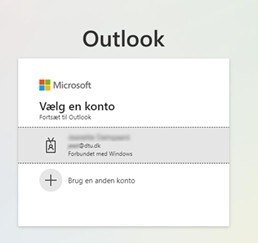
Outlook is typically pre-installed on your DTU computer. Simply open the application and log in using your DTU email and password.If Outlook doesn’t start correctly or prompts you to enter your details manually, you can follow the guide How to Install Outlook Manually.
If Outlook is not already installed on your computer, you can do the following:
- Open Outlook
- Go to File > Add Account
- Enter your DTU email address
- Click Advanced Options
- Check “Let me set up my account manually”
- Click Connect
- Select Office 365
The Windows Security window will open:
- Click More choices
- Select Use a different account
- Enter your DTU username and password
- Check “Remember my credentials”
- Click OK
- Click Done
- Restart Outlook
Your DTU email is now added and ready to use in Outlook.
To ensure stable and secure access to your DTU email, use the Outlook app on your work phone. The app is usually pre-installed. When you open the app, log in with your DTU email and password.
If Outlook is not installed, you can download the app via Google Play (Android) or the App Store (iPhone).
If Outlook is not installed, you can download the app via Google Play (Android) or the App Store (iPhone).
The following link provides help on how to sync your contacts in Outlook on your mobile:
You can access your DTU email directly through Outlook Webmail without installing software or being connected to DTU’s VPN – simply open it via Microsoft.
Outlook Webmail is useful if you need to log in from a temporary device. Log in with your DTU account to access your DTU email, calendar, and contacts.
Outlook Webmail is useful if you need to log in from a temporary device. Log in with your DTU account to access your DTU email, calendar, and contacts.